Switching from the official WhatsApp to GB WhatsApp can be a thrilling experience since the app provides enhanced privacy settings, customization options, and enhanced messaging functionality. But before you begin using the app, it is essential to transfer your chats safely. Many users are concerned about losing their chats, photos, and documents while switching to the new app.
This comprehensive blog will walk you through the process of transferring your chats from WhatsApp to GB WhatsApp. By following these steps, you can easily transfer your chats without losing any crucial data.
Why Transfer Chats to GB WhatsApp
Transferring chats while switching to GB WhatsApp ensures that your past chats are still accessible. Your messages, images, videos, voice messages, and documents are all safe and can be accessed.
Transferring chats helps you:
- Preserve crucial conversations
- Save photos and media files
- Continue chatting without any interruptions
- Prevent losing business or personal messages
- Make the transition smooth and hassle-free
Without a backup, all chat history will be lost once you uninstall WhatsApp. This is why a backup is the most critical step.
Step 1: Create a Local Backup in WhatsApp
Before you proceed to install GB WhatsApp, you need to make a local backup. Cloud backup, such as Google Drive backup, will not work properly with GB WhatsApp. Therefore, you need to make a local backup.
To do this, follow these steps:
- Open WhatsApp on your phone
- Go to Settings
- Tap Chats
- Select Chat Backup
- Turn off Google Drive backup if it is enabled
- Tap Back Up
WhatsApp will create a backup file within your device storage. The file holds your messages and media. Ensure that the backup process is complete before proceeding to the next step.
Step 2: Find the Backup File
After creating the backup file, you need to find the file within your phone storage.
To do this, follow these steps:
- Open File Manager on your device
- Go to Internal Storage
- Open the WhatsApp folder
- Open the Databases folder
Within this folder, you will find backup files with the following names:
- msgstore.db.crypt14
- msgstore-yyyy-mm-dd.db.crypt14
These files hold your chat history.
- Do not delete or modify these files.
Step 3: Install GB WhatsApp
Now, you need to install GB WhatsApp on your device.
To do this, follow these steps:
- Download the latest GB WhatsApp APK file from a trusted website
- Open your phone settings
- Enable Install from Unknown Sources
- Install the APK file
After installation is complete, do not open GB WhatsApp yet. Opening the application too early may prevent proper chat restoration.
Step 4: Move Backup Files to GB WhatsApp Folder
This step will enable GB WhatsApp to detect your WhatsApp backup.
Follow these steps carefully:
- Open File Manager again
- Go to Internal Storage
- Find the WhatsApp folder
- Rename the folder to GBWhatsApp
Make sure the folder structure looks like this:
Internal Storage → GBWhatsApp → Databases → Backup Files
- Check that your backup files are still inside the Databases folder.
This step is necessary because GB WhatsApp reads backup files from the GBWhatsApp folder.
Step 5: Restore Chats in GB WhatsApp
Now you can restore your chats in GB WhatsApp.
Follow these steps:
- Open GB WhatsApp
- Agree to the terms and permissions
- Enter your phone number
- Verify your number using the code sent to you
- Tap Restore when prompted
GB WhatsApp will automatically detect the backup file and start restoring your chats.
The time taken for the restoration process depends on the size of your backup. If your backup is large, it may take a few minutes. Once done, your messages and media will be visible within the app.
Step 6: Check Chats and Customize Settings
After restoring your chats in GB WhatsApp, you need to check everything.
Make sure:
- Chats are visible
- Media files are accessible
- Contacts are visible properly
- Groups are restored
Once you are satisfied that your chats are successfully restored, you can customize the app.
You can change:
- Privacy settings
- Themes and colors
- Font styles
- Notification preferences
- Chat interface
Your GB WhatsApp is now fully ready to use.
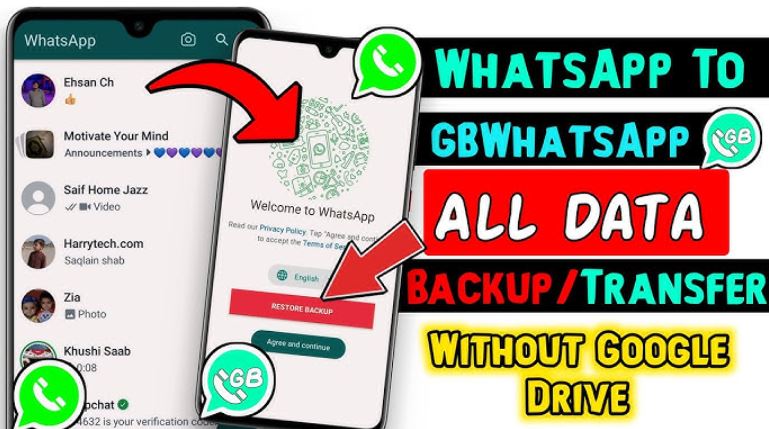
Tips for Safe Chat Transfer
To prevent any issues while transferring your chats to GB WhatsApp, follow these tips:
- Create a fresh backup before changing
- Use the same phone number for restoration
- Use the latest version of GB WhatsApp
- Do not delete backup files before restoration
- Store a copy of your backup files on your computer
- Have sufficient storage space on your device
By following these tips, you can prevent data loss.
The process of moving chats from WhatsApp to GB WhatsApp becomes easy if you follow the right procedure. The right local backup and organization of folders will help you successfully restore your chats. Once you have transferred your chats, you can enjoy the latest features while also protecting your critical messages.
Leave a Reply